Reading Strategies
How to Read Articles in MovaReader: A Step by Step Guide
From picking a text to your first learned word. Real screens showing how the reader works, what the word colours mean and why the progress panel matters.
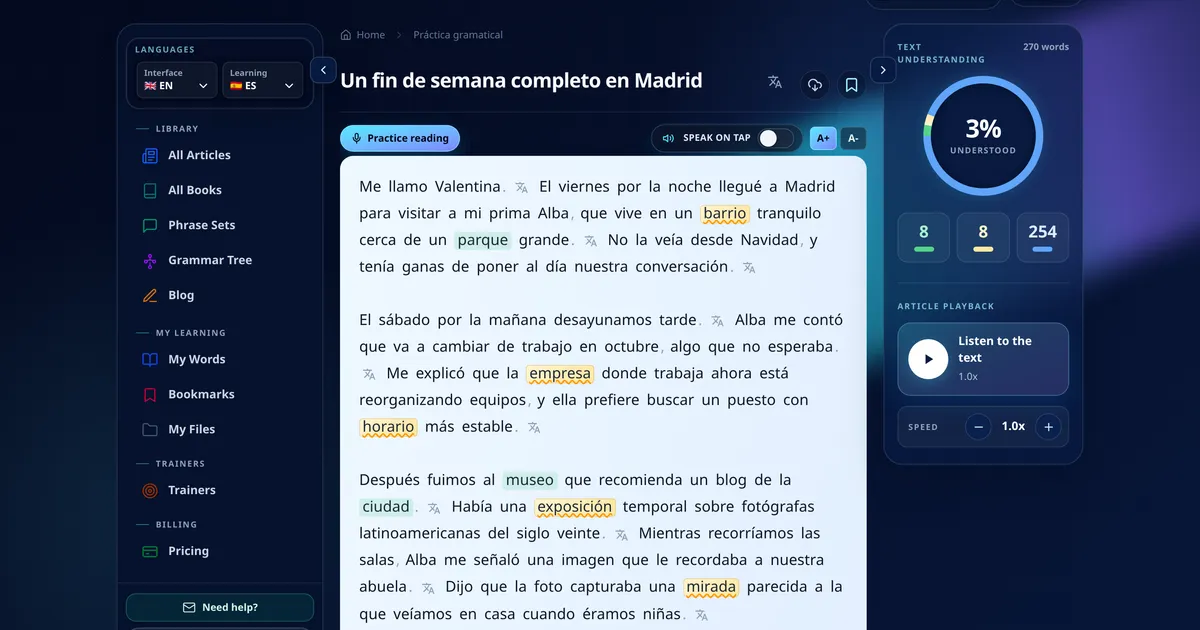
You open a Spanish text. The first sentence goes fine. By the third one you are in a translator tab, and by the fifth you have forgotten what the paragraph was about.
That is the real problem with reading in a new language. Not difficulty. Interruption.
MovaReader puts the dictionary inside the page. You tap a word, the translation appears, and you decide right there whether you already know it or want to learn it. No tabs, no notebook, no losing the thread.
Here is the whole flow, from picking a text to your first learned word.
The short version
- Pick a Spanish text at your level from the library
- Tap any word you do not know and see the translation
- Send it to your learning list with one tap
- Watch your comprehension score climb as you read
Now the same thing, slowly, with screenshots.
Step 1. Pick a text in the library
Start in All articles. Everything is sorted by topic and by CEFR level, A1 through C2.
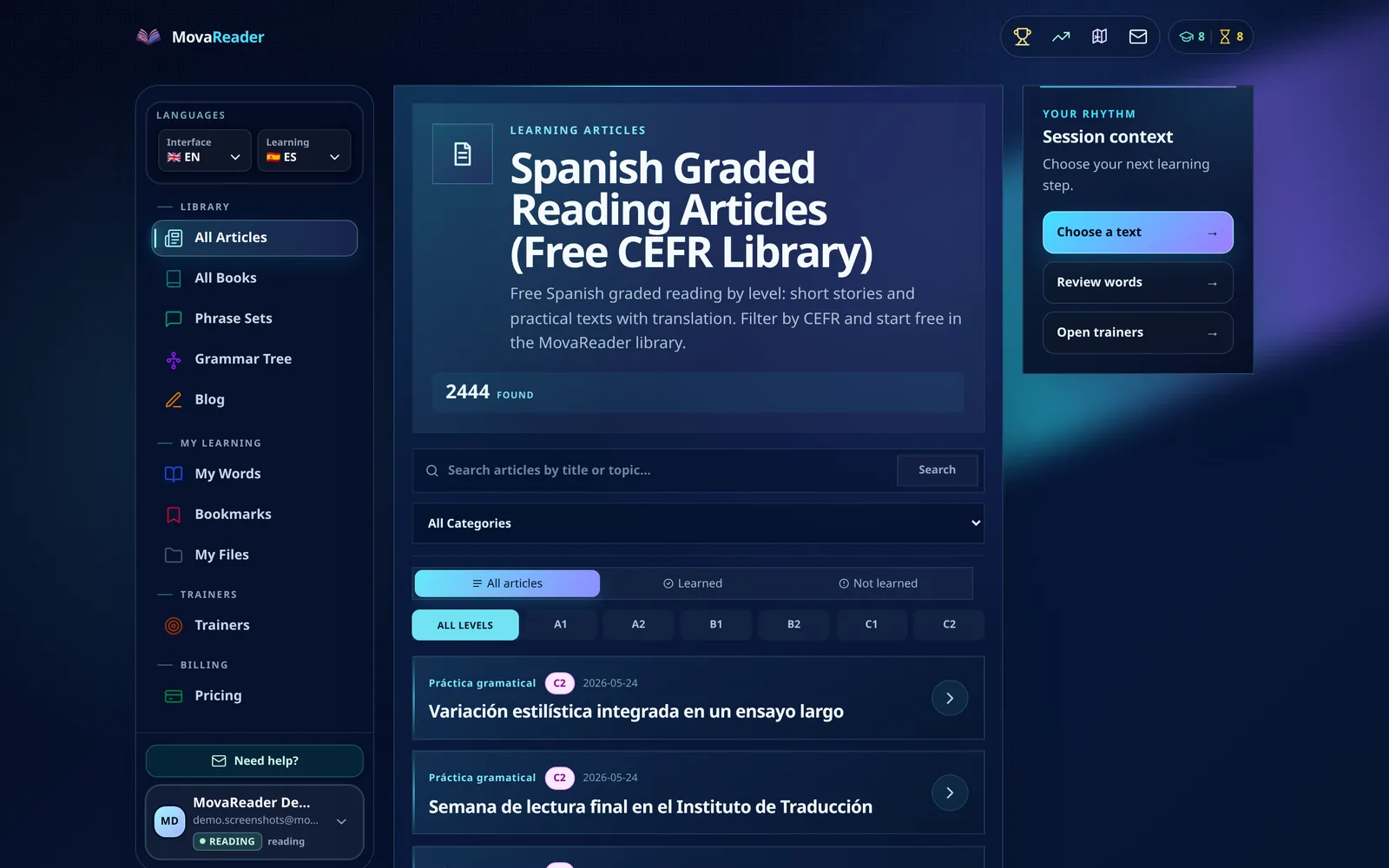
One rule matters more than the rest: pick a text where you already understand most of the words. If there are three unknown words in every sentence, you are not reading, you are decoding. That is slow, and it does not stick.
Picked something too hard? Go back and take an easier one. That is not a setback, that is how this is supposed to work.
Step 2. Learn the reader screen
Open an article and the screen splits into three zones.
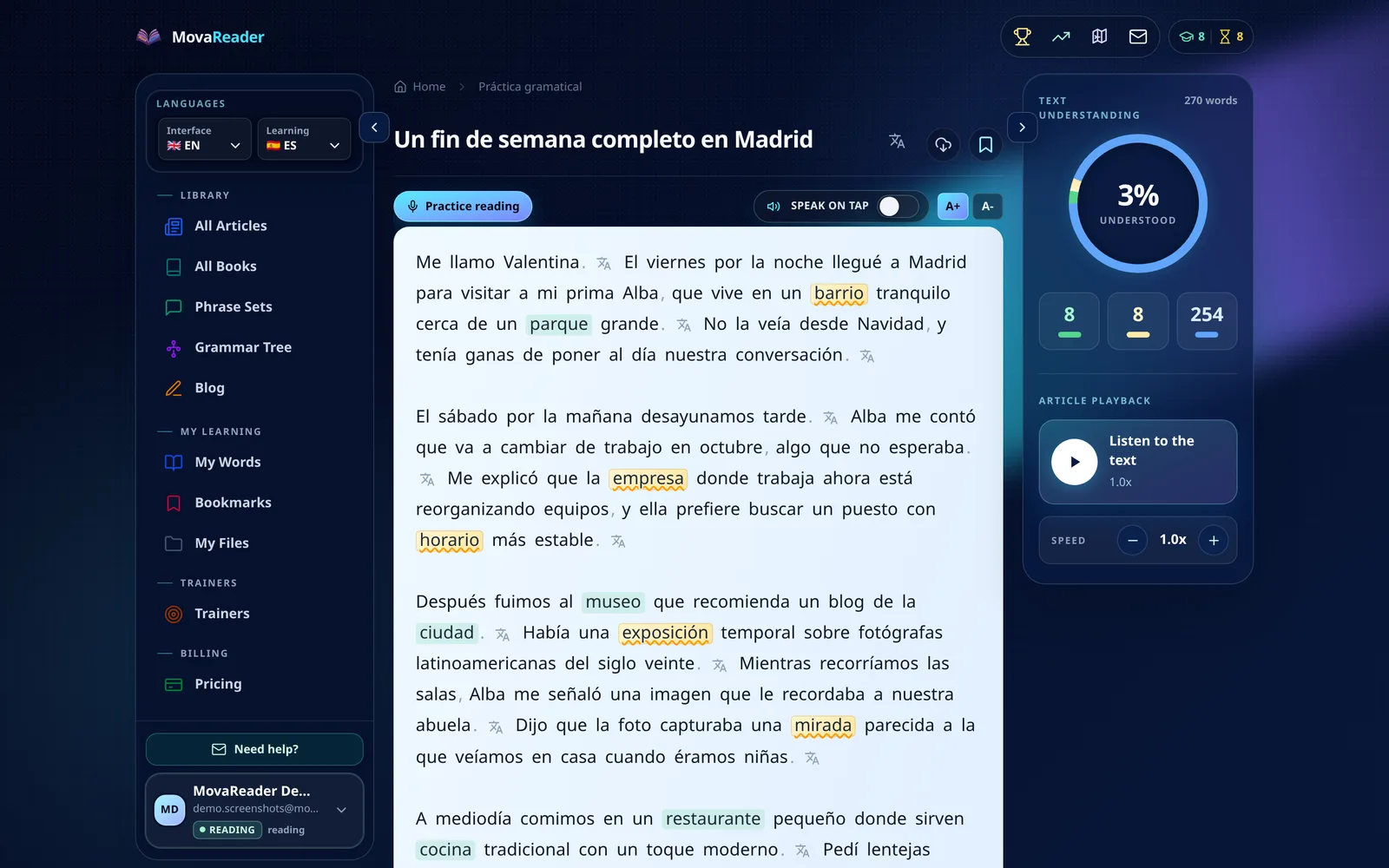
Left is navigation: the library, your words, bookmarks, trainers. The language switchers live here too, one for the interface and one for the language you are learning.
Centre is the text itself on a light reading canvas. Notice the words are different colours. We will get to that.
Right is the progress panel: your comprehension score for this text, word counters, and audio playback.
Above the text there are font size buttons and a "speak on tap" toggle. If your eyes get tired, make the text bigger. More people use that than you would guess.
Step 3. Tap a word you do not know
This is the whole trick. See a word you do not recognise, tap it.
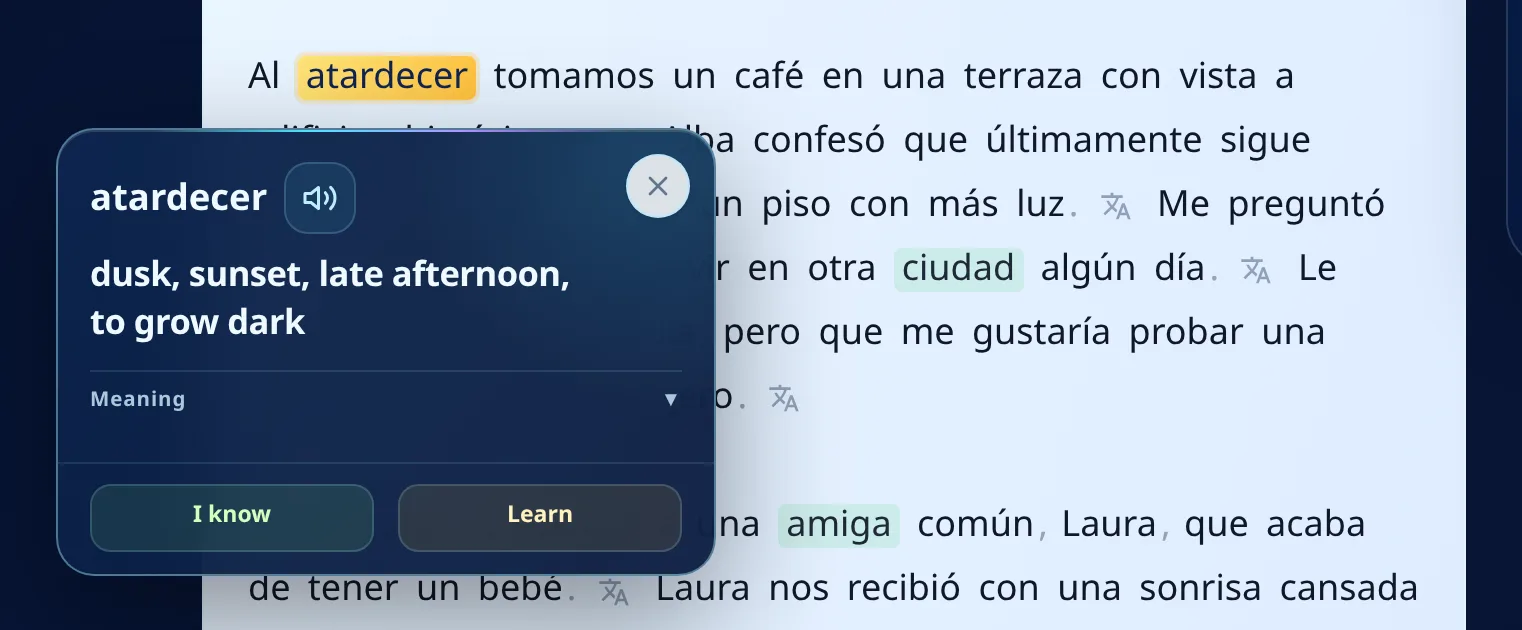
A card opens with:
- the word and a speaker button, so you can hear how it sounds
- the translation in your interface language
- a Meaning section that expands when you need an explanation rather than a bare translation
- two buttons: I know and Learn
Choosing between those two buttons is the entire learning system. Everything after that is repetition.
Step 4. Tap Learn and the word joins your list
New word you want to keep? Tap Learn.
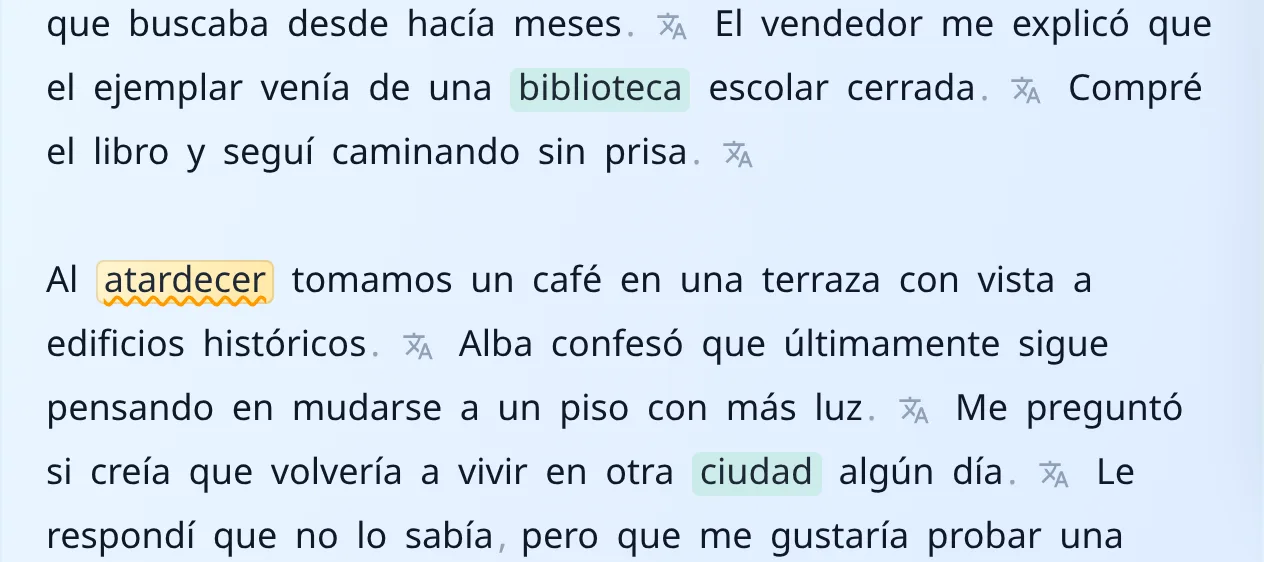
It turns amber with a wavy underline. It is now in your list, and it will be recognisable in every other text on the site, not just this one.
That last part matters. Word statuses live in your profile, not inside a single article. Mark atardecer here and it will still be amber in a different text tomorrow.
Step 5. When it sticks, tap I know
After a few encounters you will recognise the word without help. Tap it again.
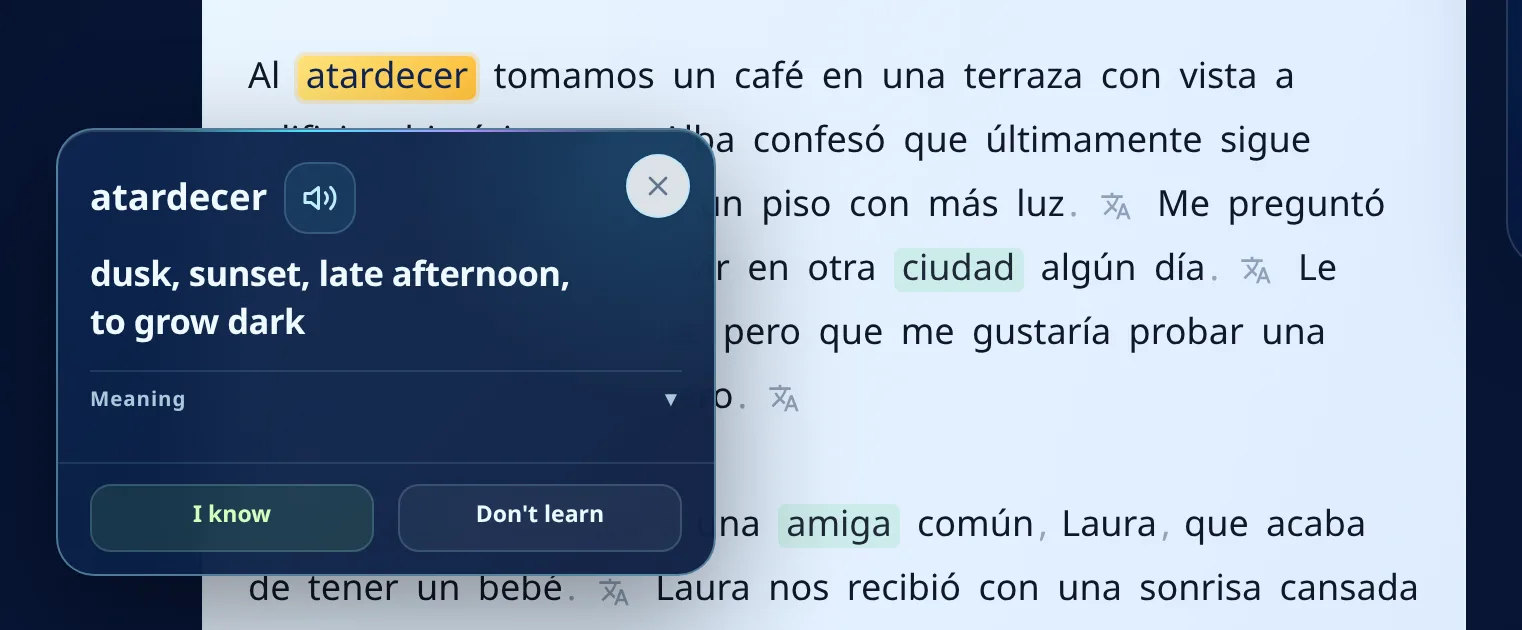
The buttons are different now: I know moves it to learned, Don't learn drops it from your list entirely, which is handy for proper nouns and words you simply do not need.
Tap I know.
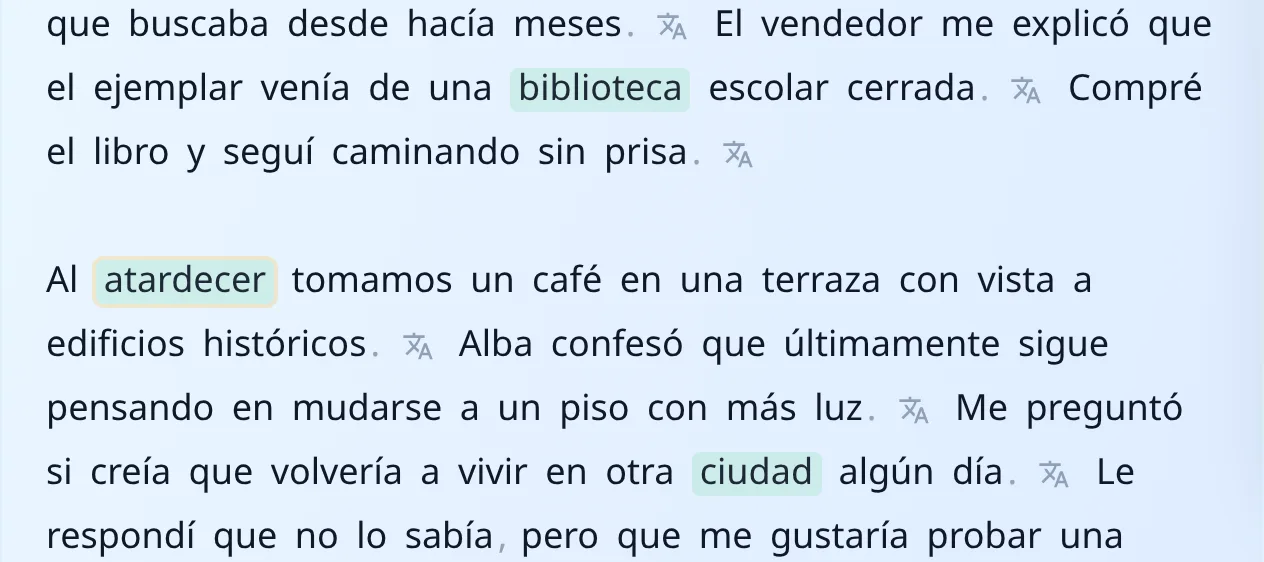
Green. The word stops competing for your attention but stays in your statistics.
Word colours: reading the text the way MovaReader sees it
This is probably the most useful thing to take away from the whole article.
| Colour | Status | What to do |
|---|---|---|
| Blue dotted | New | Tap it if you do not know it |
| Amber wavy | Learning | Try to recall it first, then check |
| Green | Learned | Just keep reading |
| No colour | Ignored | Proper nouns, function words |
Here is what it looks like in a real text: green is already yours, amber is in progress, the rest is still new.
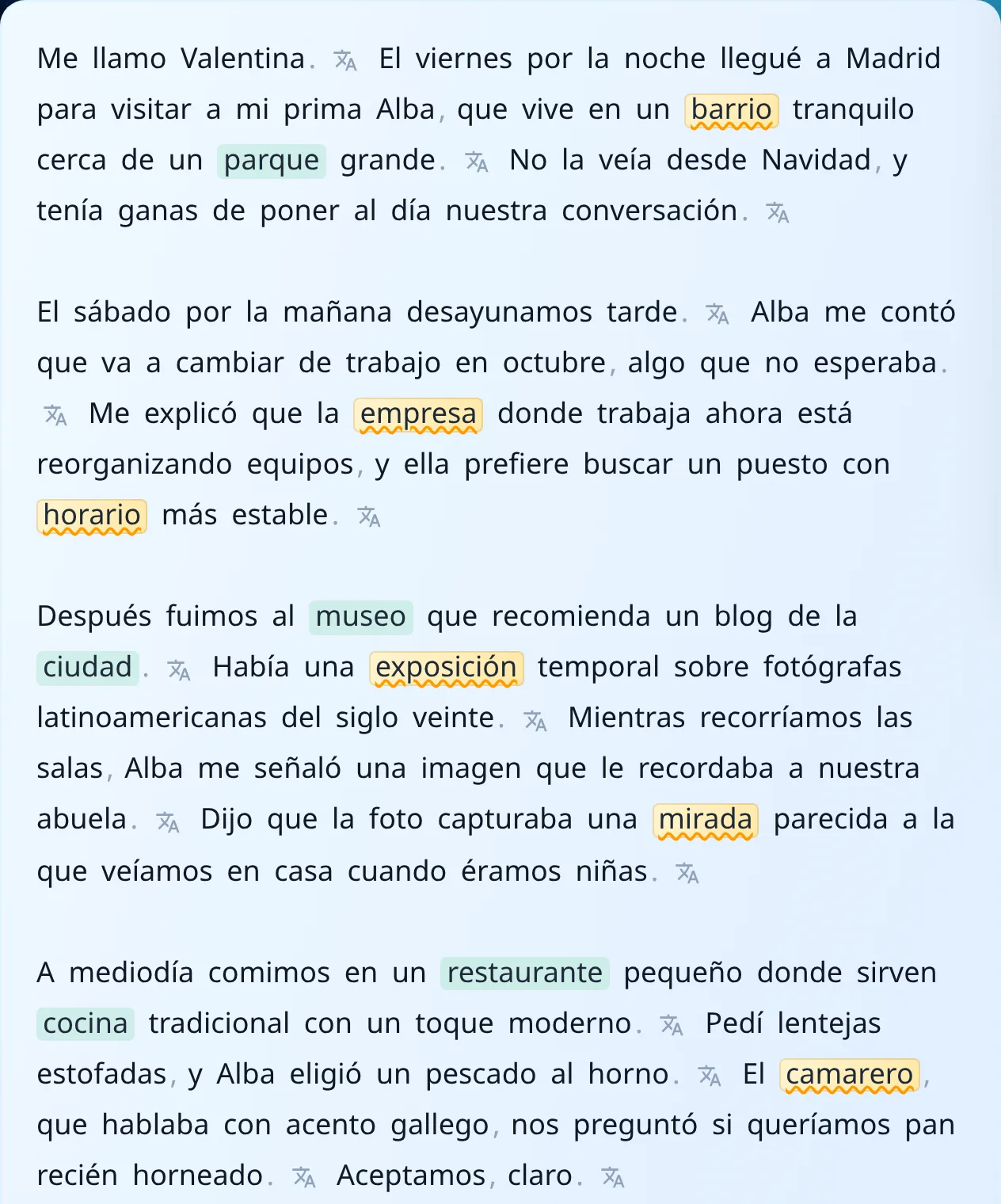
After a week of reading the page physically looks different. More amber and green, less blue. It is the simplest progress indicator there is.
Step 6. Watch the progress panel
The panel on the right tracks how much of this specific text you understand.
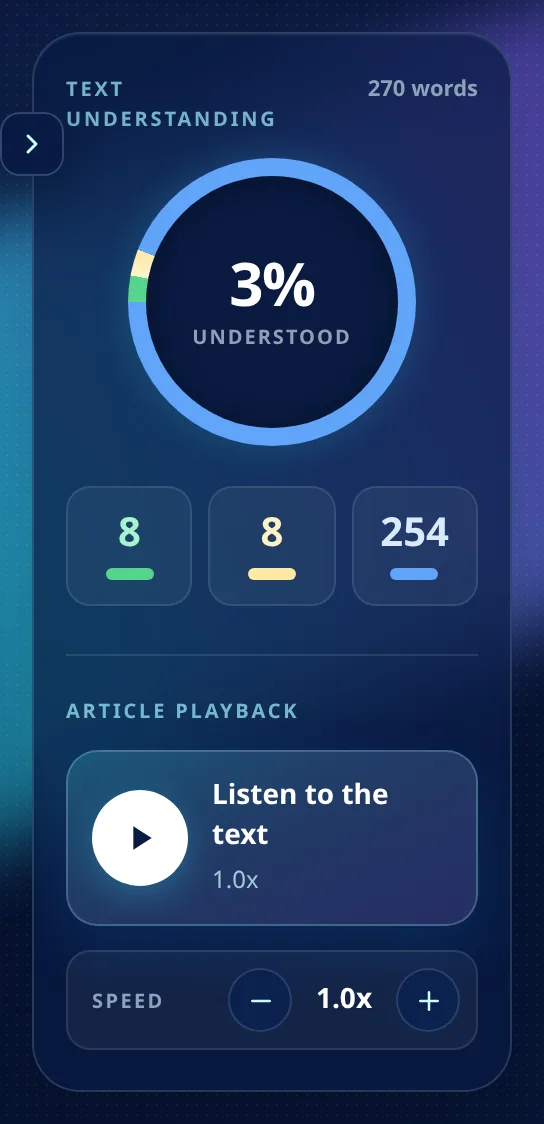
The big circle is the share of words in the text you already know or are learning. Below it, three counters: green for learned, amber for in progress, blue for still new.
Do not chase 100%. Comfortable reading sits somewhere around 90 to 95%. If a text opens below 70%, it is too early for you.
Step 7. Come back to your words
Everything you marked collects in one place.
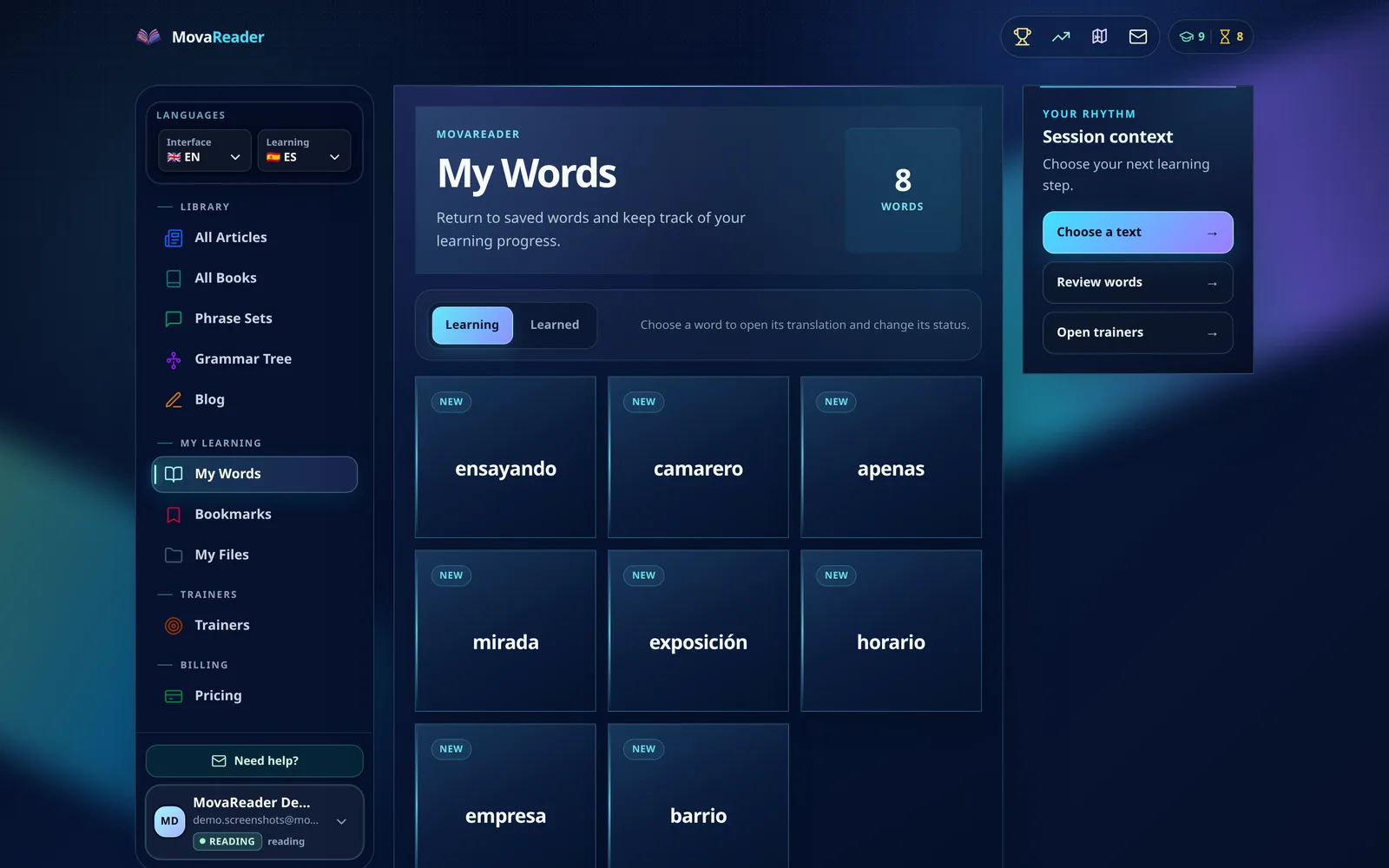
Two tabs: Learning and Learned. Tap any word to open the translation and change its status without going back into the text.
This is also the doorway to the trainers, if you want to move from recognising a word to actively recalling it.
Same thing on your phone
The reader works fully on mobile. The translation card slides up from the bottom, the buttons are identical.
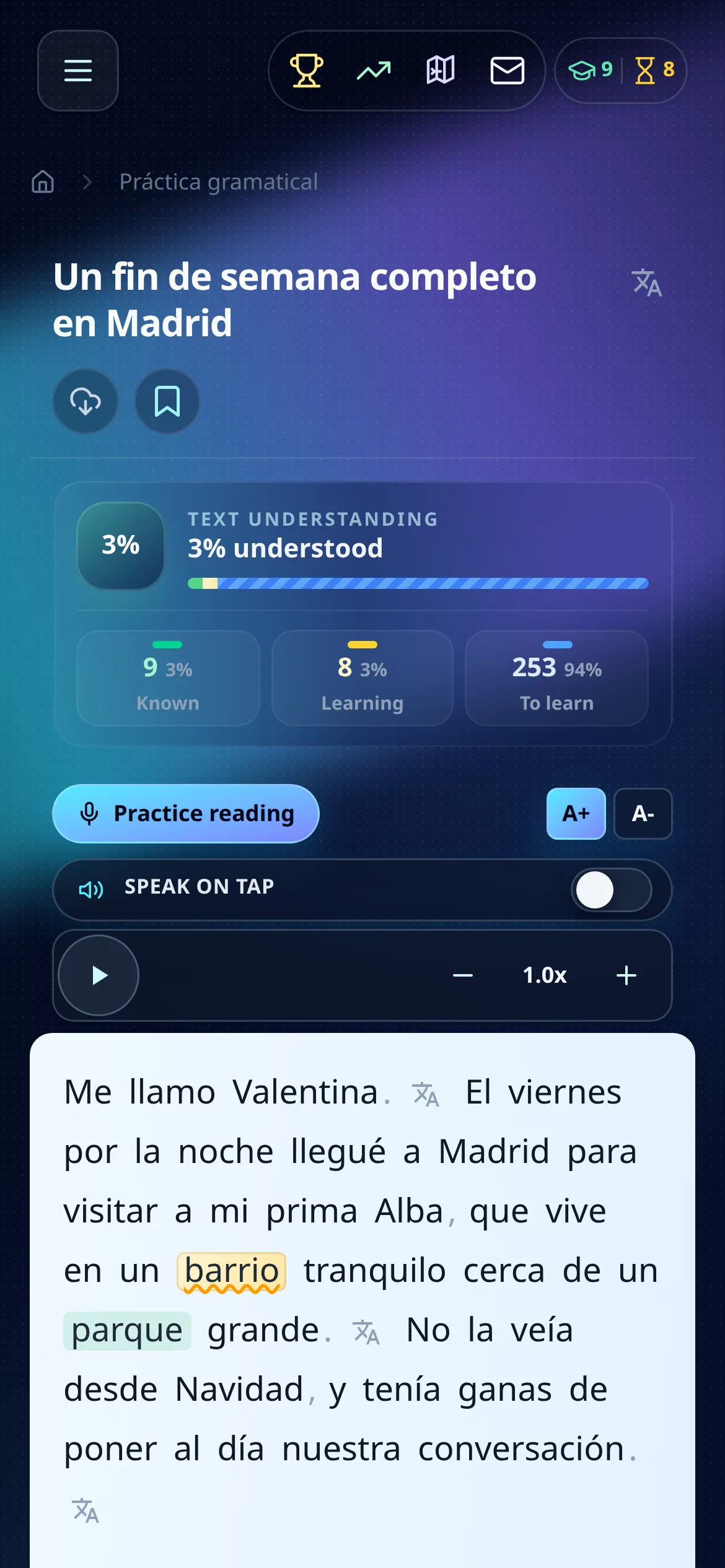
Which is how most people actually read: on a commute, in a queue, before falling asleep.
Questions people ask
How many words should I add per text? As many as you will genuinely meet again. Twenty from one article is too many. Five to seven is a working pace.
The translation does not fit the sentence. Now what? Expand the Meaning section. That is an explanation rather than a dictionary gloss, and it takes the surrounding sentence into account.
A word lost its highlight after Don't learn. Is that normal? Yes. It simply stopped counting toward your progress. Tap it again any time to give it a status back.
Can I read my own texts? Yes, in My files. The colours and statuses behave exactly the same way there.
What to do right now
Open any Spanish article at your level and read one paragraph. Tap three words you do not know and send two of them to Learn. It takes about a minute, and you will have the start of a vocabulary list that remembers for you.
Keep reading with translations inside the text
With a free account, an unknown word translates with one tap, and the words you are learning wait for you in the trainer.
Free account: 7 days of Pro, then 20 word translations a day or a paid plan.